
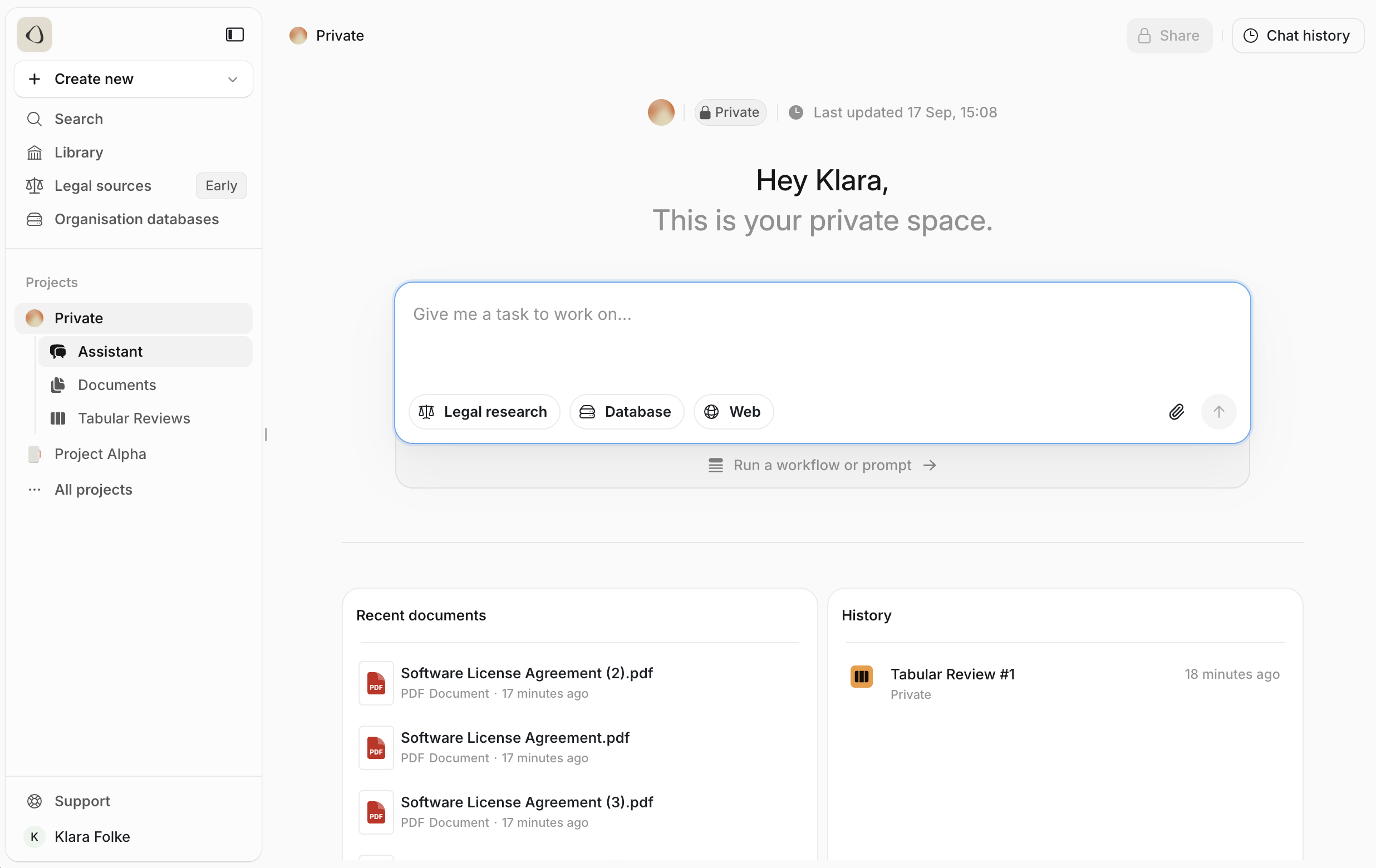
In this section, we’ll explain how to access the platform, set up your first project or matter, upload key documents, and share your workspace with colleagues. Your welcome email includes everything you need to begin — a login link and your initial credentials.

Logging in

To get started:
  1. Go to the Legora Login Page
  2. Click Sign Up
  3. Enter your name and role and follow the instructions on screen
  4. You will be guided to create a Private Project for your own ad-hoc needs
Once completed, your new project will appear on your home screen. Click into it to begin working. Upon entering a project, you’ll land on the Assistant view within your Private Project — the assistant is the central workspace where most tasks begin. From this page, right under the assistant, you can select a different project and it will take you directly there. Navigating projects From this interface, you can upload and review documents, generate summaries, conduct legal research, and manage outputs — all within a streamlined, responsive environment. In the next part of this series, we’ll explore the Assistant’s capabilities in detail. For now, let’s examine how documents are structured and stored within Legora.
Documents vs. Organisation Databases

Legora separates files into two main categories:

Documents

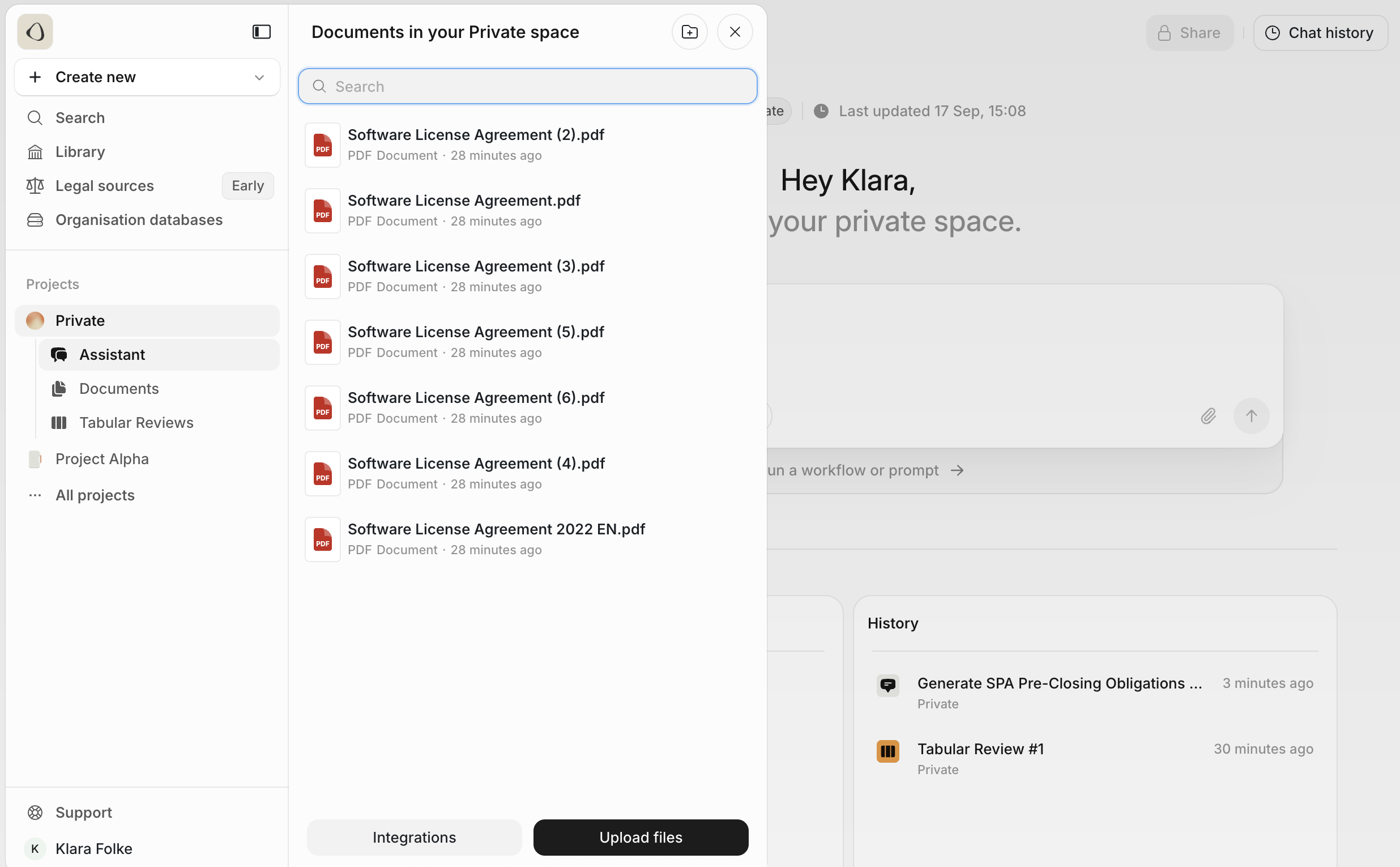
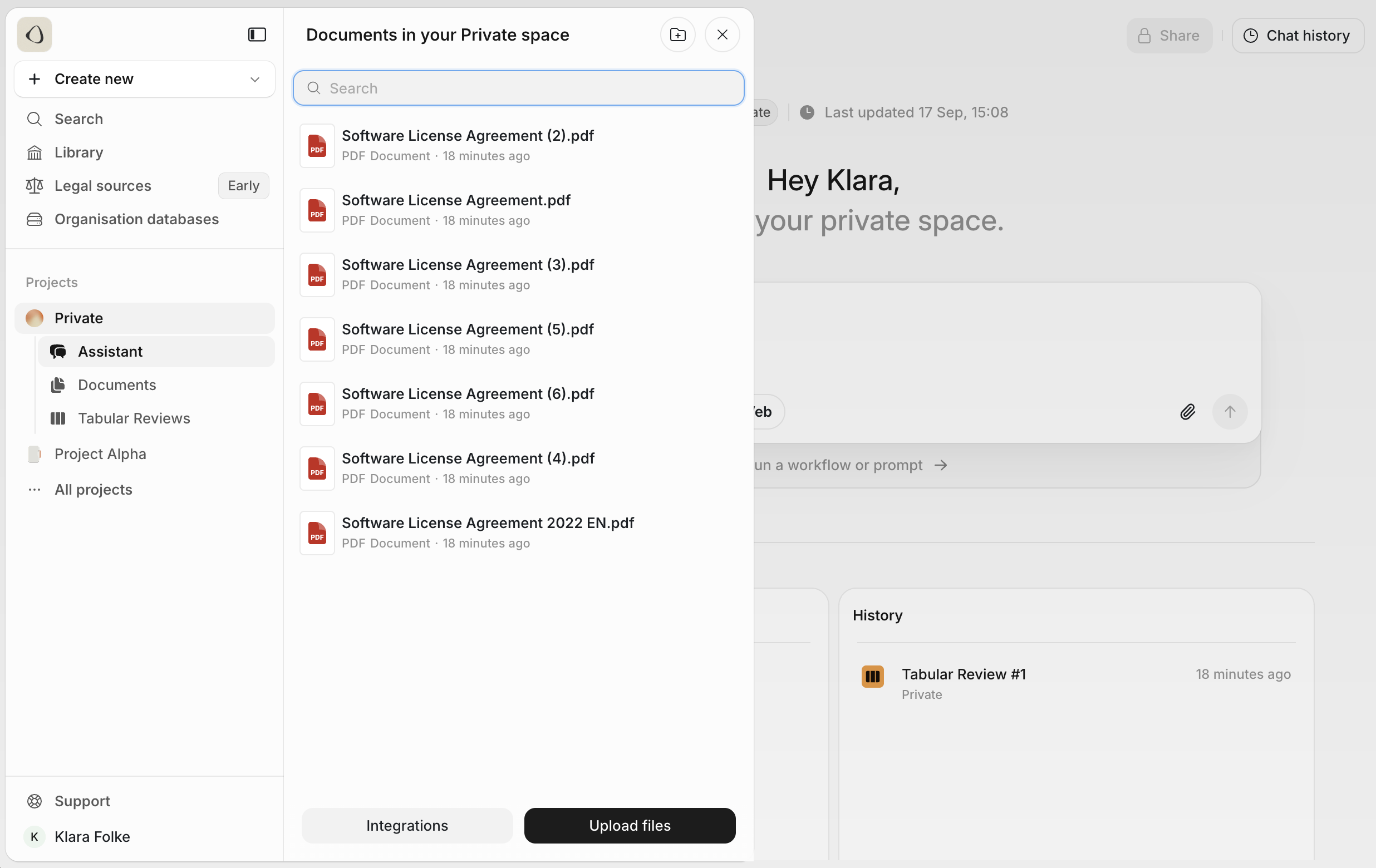
Documents These are project-specific and remain siloed within the matter you’re working on. Use this space for files related to a deal, dispute, or client-specific task. You can upload content in multiple ways:
  • Click Upload Files to select documents
  • Drag and drop entire folders into the interface
  • Maintain original folder structures during upload
For example, uploading a structured VDR from an M&A transaction will preserve its internal hierarchy, making it easy to browse and review.

Organisation Databases

This section contains shared resources across your workspace, such as:
  • Precedent agreements
  • Clause libraries
  • Model documents
Accessible from the left-hand panel, Organisation Databases are best used for reference materials that apply across multiple matters.

Uploading & using documents

You can upload documents in two primary ways:
  • Via the Documents tab
  • Directly within the Assistant view
Uploading & using documents Once uploaded, documents are instantly usable. For example, after adding a term sheet, you might ask the Assistant: “Summarise the change of control clause in this agreement in under 100 words.” The Assistant responds with an in-line summary and links to the source text. You can then:
  • Download the result as a Word document
  • Export the full conversation
  • Organise documents and outputs into folders
Legora also integrates with document management platforms like iManage and SharePoint. These integrations automatically sync changes made externally into Legora. iManage support is currently being finalised.

Sharing your project

You can share all of your projects, except your private project. To collaborate with others:
  1. Click Share Project in the top-right corner
  2. Invite users by email
  3. Assign roles such as Editor or Viewer
  4. Remove or update access with a single click
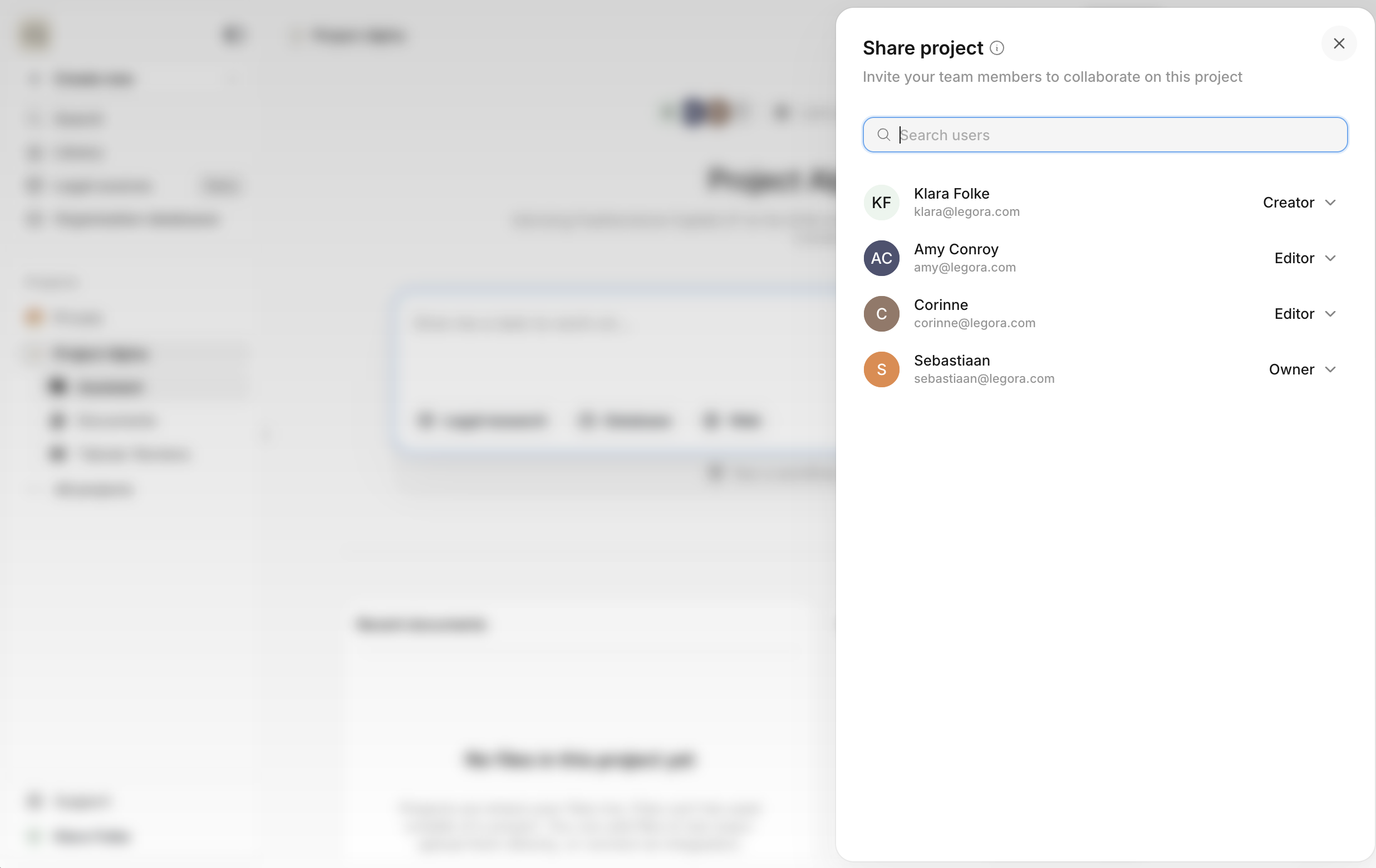
Sharing your project This allows your team to collaborate within a shared project environment, track progress, and work from a single source of truth.

Settings & support

In the bottom-left menu, you’ll find:
  • Support Page – A direct link to the Help Centre with FAQs and detailed how-tos
  • Profile Settings – Manage your profile information, notification preferences, and theme (light/dark mode)
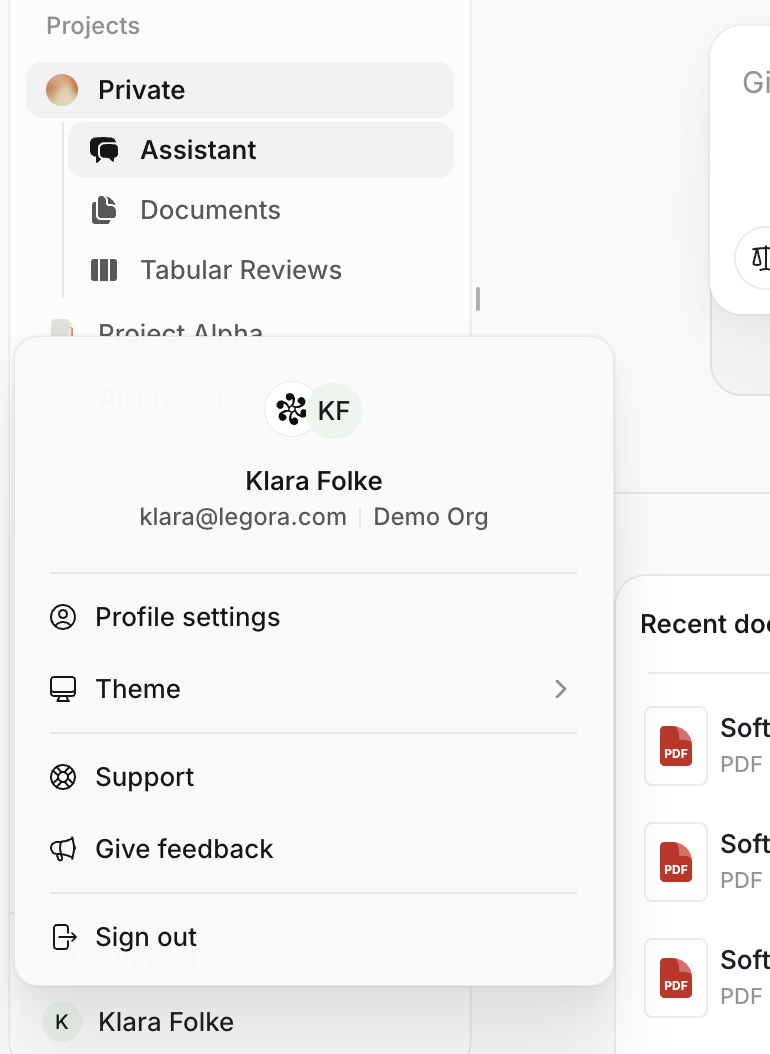
You can switch between interface themes at any time based on your preferences or working conditions. Settings & support

Next steps

You’re now set up and ready to start working in Legora. In the next section, we’ll explore how to use the Assistant to streamline your legal work — from drafting and summarising to legal research and comparisons.